


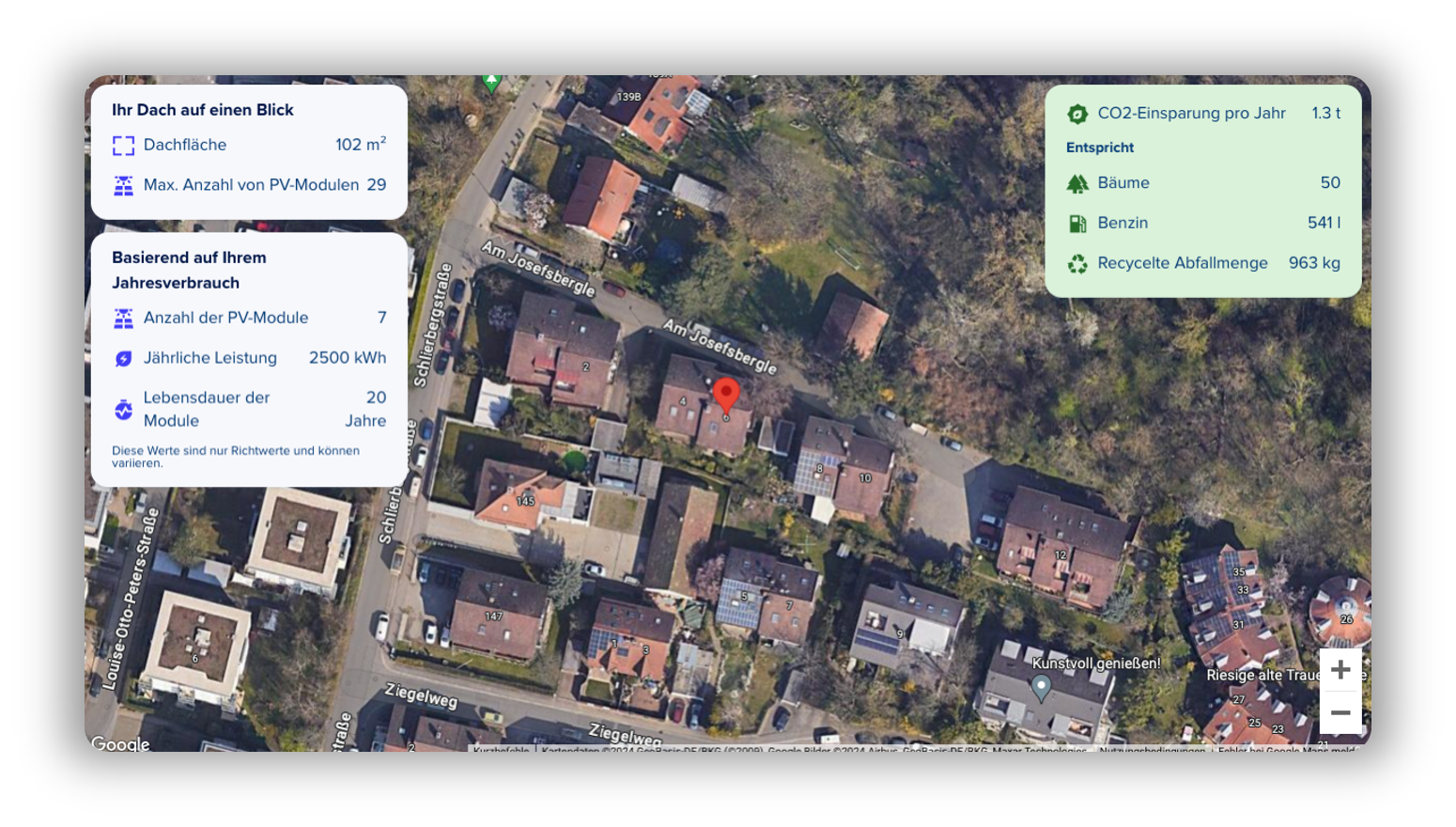

The PV Roof Navigator uses solar data from Tetraeder, which is subject to a fee. To gain access to the PV Roof Navigator, a paid license from our partner Tetraeder/Enwarp is required. By completing the form, Enwarp will contact you directly.
Prerequisites in epilot
- The journey must include an availability block in order to use the “PV Roof Navigator” block. To display the roof data and the building on the map in the PV Roof Navigator block, the connected availability block must contain the following address information: postal code, city, street, and house number.
- If you would also like to display a recommended number of PV modules based on the annual electricity consumption, you will need an additional number input block that asks for the annual consumption.

Configuration in epilot
- Add a new step to the corresponding journey.
- Then click “Add block” and select the “Availability Check” block under “Complex Inputs.”
- After that, open the block settings and select the availability block whose data the PV Roof Navigator should access.

- If you would like a recommended number of PV modules to be displayed based on the annual consumption, you must also select the corresponding number input block.

- You’re now finished. Don’t forget to save your changes.
In certain situations, end customers may not yet have an exact address for their homes—for example, if the street does not yet exist or if the house is still under construction. In such cases, a map that allows the building’s location to be selected can be helpful. For this reason, the Address block now optionally supports the use of Google Maps when it is enabled in the settings.

In the journey, it then looks as follows:

You can now enter an address, which will then be displayed on the map. Alternatively, if the option “Allow address repositioning” is enabled, it is also possible to select the exact location of the building directly on the map.


